Search This Blog

Saturday, 1 October 2016

Around the world in 80 days Access Violation 0X00580681 Error

A customer couldn't start the game 'Around the world in 80 days', purchased from Big Fish Games. Clicking on the icon resulted in the following error:


I was able to resolve the problem with the following steps:

1. Press and hold the Windows flag key in the bottom left corner of the keyboard and tap the 'r' key at the same time.

2. In the Run box that appears, type in %programdata% and click on OK.


3. In the new window that appears, locate and click on the folder titled Playrix Entertainment.


4. Press the delete key on the keyboard and click on Yes to confirm in the window that appears.


5. Click the cross in the top right corner of the screen to close the window down, then try starting the game again.


Tuesday, 15 March 2016

Google Chrome no longer Supported on Windows XP or Vista


A number of customers with older systems have been getting in touch about the above message.

Google has decided to stop releasing updates for it's Chrome web browser for users of Windows XP and Vista.

Whilst this won't stop Chrome from working on these systems immediately, it will become less secure and eventually unusable.

Using an unsupported browser makes the computer more vulnerable to viruses and other technical problems, so it is advisable to take action before the end of support on the 1st of April 2016.

There are three main courses of action worth considering:

  • Stop using Google Chrome and start using a good alternative such as Mozilla Firefox. Firefox makes it really simple to transfer across any bookmarks and passwords saved in Chrome. Mozilla Firefox can be downloaded here: https://www.mozilla.org/en-GB/firefox/new/
  • Upgrade the computer to Windows 10 and continue to use Google Chrome. This is often quite a costly option because there is no direct upgrade path from Windows XP or Vista and the free upgrade offer only applies to Windows 7 and 8. In addition, most computers of this vintage will need upgrading to make Windows 10 work smoothly. A typical total cost might be around £200 with a Windows 10 Home license, more RAM memory and a fast SSD hard drive.
  • Replace the computer and continue to use Google Chrome. This would be more expensive but might be the best option if the computer is nearing the end of it's useful life. If it performs poorly in other areas then this would probably be the best way forward. A new computer with a reasonable specification can be purchased for £3-400.

Friday, 1 January 2016

Unable to install AOL Desktop with blank error message (Windows Vista)

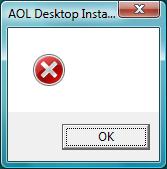
I recently was asked to resolve another problem with AOL Desktop - the 'Main.idx' had disappeared from the AOL profile folder within ProgramData and the program could not start. After some checks, I decided to completely uninstall and reinstall the AOL software. Although the removal was straightforward, I could not reinstall the software no matter which way I tried. The following error 'message' kept appearing, followed by a completely white square that could only be closed using Task Manager.

Honestly, could this error be any more helpful?
Fortunately, the solution was simple - uninstall Adobe Flash Player for Internet Explorer (ActiveX). As the customer was using Windows Vista, this was unlikely to cause a problem since the latest version of Internet Explorer that runs on Vista is 9.0. This is too old to be useful, and another browser such as Google Chrome or Mozilla FireFox is required for regular browsing. I did not try reinstalling Flash Player after successfully installing AOL Desktop, so I'm not sure if similar problems would have returned or not.

Coincidentally, my very next job was also for someone running Windows Vista with a similar problem, though this was with the software for a Brother scanner. Instead of the usual controls for scanning images and files, a white space in the shape of the original program appeared. As before, uninstalling Adobe Flash Player for Internet Explorer did the trick, although the customer did comment that the program looked a bit different than it did before.

I think it's likely that there is a problem with Adobe Flash Player 20 and Windows Vista, or perhaps with Internet Explorer 9, or perhaps with any number of different programs - who knows?

Saturday, 10 January 2015

AOL DESKTOP 9.7 NOT STARTING (NO ERROR)

AOL DESKTOP 9.7 NOT STARTING (NO ERROR): Windows 8

Problem:

When the AOL Desktop 9.7 icon is double clicked from the desktop, there is no response from the computer. No error is displayed, but the AOL desktop software does not start.


Solution:

After investigating the problem, I was able to resolve it by renaming the splash.ini file in the C:\ProgramData\AOL\C_AOL Desktop 9.7\ folder.

My guess is that reinstalling the program would not have resolved the problem as I don't think files in C:\ProgramData are modified if they are already present.


Thursday, 20 November 2014

HOW TO FIX: Sound not working in Windows 8 - 'Error 0x800706cc: The Endpoint is a duplicate'

There have been many reports on the Internet recently of a problem affecting sound playback in Windows 8/8.1 caused by the accidental removal of system files by AVG anti-virus.


The symptoms include:

- Complete loss of audio
- A red cross over the speaker icon in the system tray (bottom right corner) area of the screen.
- Unresponsive navigation of the Windows Control Panel causing explorer.exe to hang.
- Inability to start the 'Windows Audio' service with the error message Error 0x800706cc: The Endpoint is a duplicate.
- Inability to start the 'Network List' service with the error message Error 127: The specified procedure could not be found.
- One or more system files in AVG quarantine (this can vary).


Many reports indicate that restoring the system files from the AVG quarantine restores normal sound and Control Panel operation. On the Toshiba laptop I was working on, there was evidence of a Printconfig.dll file having been recently 'secured' but no sign of it existed in the quarantine, so this was not an option. The file name itself seems to vary, with some accounts of the problem mentioning a 'launcher.exe' file instead.

What was strange about the problem is that the regular 'SFC' and 'DISM' tools did not recognise any missing or corrupt files, so it was very difficult to find out exactly what was missing. After a lot of Internet searching, I finally came across a post by Nathan Mixter at http://superuser.com/questions/814671/cant-enable-windows-audio-on-windows-8-1. Nathan had fixed the problem by using a a free program called 'Windows Repair', available to download from http://www.tweaking.com/content/page/windows_repair_all_in_one.html.

I was sceptical at first, but started the 'repair' section of the program running with its default options ticked and left it to process overnight. After about 8 and a half hours it finally finished, and on restarting the computer I was amazed to discover that the sound was now working again. Whatever it was doing it all that time remains a mystery, and I have no idea what file or registry key was preventing the audio service from starting. If anybody knows, I would be really interested to hear from them.

Unfortunately, the problem with the unresponsive control panel remained. After examining the event logs, I found that it was caused by a faulty 'Network List' service which would refuse to start with the message Error 127: The specified procedure could not be found. Disabling the service seemed to restore normal operation, but I wasn't sure what the consequences of leaving it disabled might have been.

After a lot of trial and error, I was able to finally repair the problem by extracting the registry key that controls the 'Network List' service from a working computer and then importing it into the computer with the problem.

Key for the 'Network List' service:
HKEY_LOCAL_MACHINE\SYSTEM\ControlSet001\Services\netprofm

After a reboot, the service started without error and the Control Panel worked normally.

To fix this on your own machine, download the file 'netprofm.reg' from the following link:

https://sites.google.com/site/wintegrity01/netprofm.reg

Once downloaded, double click on the file and accept any warnings that appear. This will import a working 'Network List' registry key and it will automatically replace the faulty version. After restarting the computer, the Control Panel should be back to normal.



Sunday, 8 December 2013

How to manually set an IP address (Windows Vista)

1. Click on the Start circle in the bottom left corner of the screen. From the menu that appears, click on Control Panel.


2. Click on the option marked Classic View to the left of the Control Panel window that appears.


3. Double click on the icon marked Network and Sharing Center.


4. Click on the option marked Manage network connections to the left of the window.


5. Right click on the connection to which the IP address needs to be set. In most cases this will be either Local Area Connection or Wireless Network Connection. From the menu that appears, click on Status.


6. Click on the Details button in the new window that appears.


7. A new window filled with technical information will appear showing the IP address and other settings that are currently assigned to the network connection. Make a note of:
  • IPv4 IP Address
  • IPv4 Subnet Mask
  • IPv4 Default Gateway
  • IPv4 DNS Server
Click on Close.


8. Click on the Properties button. If a warning message appears, click on Continue.


9. In the new window that appears, click on the text marked Internet Protocol Version 4 (TCP/IPv4), then click on the Properties button.


10. In the new window that appears, click on the circle button marked Use the following IP address: and fill in the form below accordingly:
  • IP address: This is in four sections in the form of xxx.xxx.xxx.xxx. The first three sections must be the same as the old address, but the fourth section can be any number between 2 and 253 as long as it hasn't been taken by another device. If the old address was 192.168.0.4 then the new address could be 192.168.0.60 for example.
  • Subnet mask: This is almost always 255.255.255.0 but needs to be set the same as before.
  • Default gateway: This is the address of your router and needs to be set the same as before. It could be 192.168.0.1 for example.
  • Preferred DNS server: This is usually the address of your router and needs to be set the same as before. It could be 192.168.0.1 for example.
  • Alternate DNS server: This can be left blank in most cases.
After filling in these options, click on OK.


11. Click on the Close button.


12. Click on the Close button and click the cross in the top right corner of any remaining windows to return to the desktop.


Saturday, 9 November 2013

HOW TO FIX: The following error occurred while attempting to print your pictures (Windows Vista)


'The following error occurred while attempting to print your pictures:' Its a very frustrating message because it does not give any indication as to why the error occurred.

This error occurred on a Windows Vista machine whenever a picture was selected in Windows Explorer and the 'Print' option clicked on the tool bar. The error appeared repeatedly and I found that the only way to close it was to use Task Manager to close explorer.exe and then manually restart it.

I was able to trace it back to the following registry key:

HKEY_CURRENT_USER\Software\Microsoft\WindowsNT\CurrentVersion\ICM\RegisteredProfiles

renaming RegisteredProfiles to RegisteredProfiles.old appears to have resolved the problem.

I suspect the problem is caused by installing some old photo editing software that has incompatibility problems with Windows Vista but am not certain about this.